
Integrate with Facebook Lead Forms
Once you have created a new campaign, you can integrate it directly with Facebook Lead Forms. This allows your advocates to sign-up on Facebook and, through Speak4, each advocate’s messages are sent along to the campaign’s target recipients.
Facebook Permissions
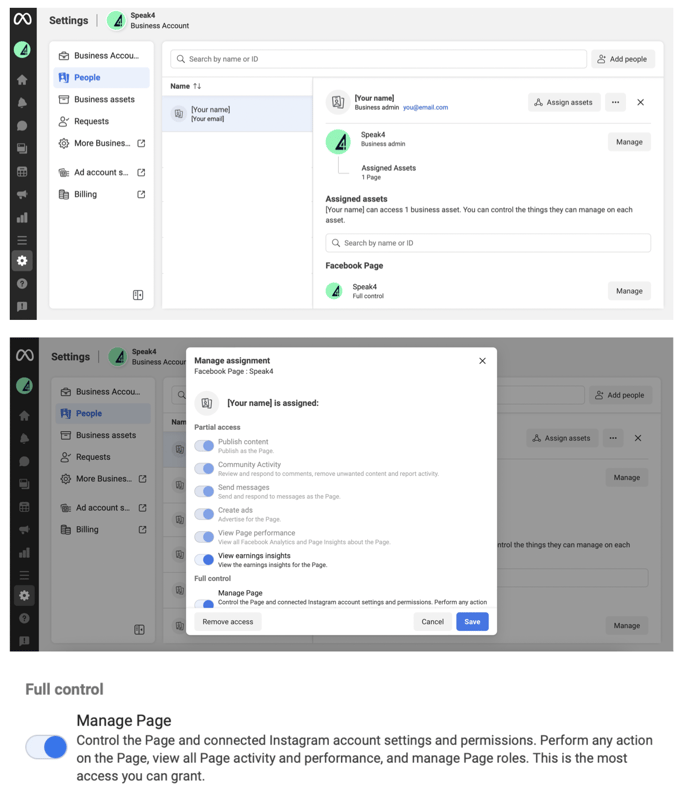
You must have full control of the Facebook business page you want to connect to Speak4. This permission can be granted by navigating to your Facebook business suite settings, selecting your name on the “People” tab, scrolling to “Assigned assets”, clicking “Manage”, and finally toggling “Manage Page” under “Full control” to on.
Form Setup
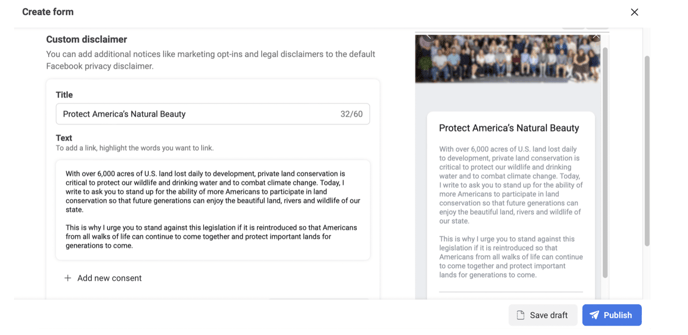
When creating your Facebook lead form, you must put your message into the “custom disclaimer” field so that Speak4 has a message to send to lawmakers. Only forms with a message set up in this way will be able to be assigned to a campaign.
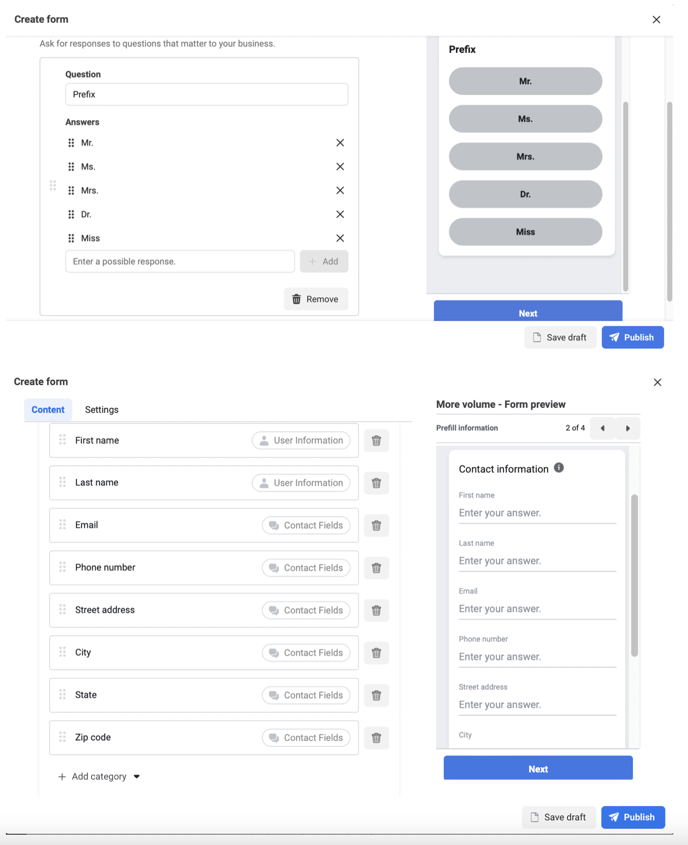
Your Facebook lead forms must have all the following question fields in order to sync with Speak4:
- Prefix/Title
- A custom question field with the following multiple choice options: Mr., Ms., Mrs., Miss, Dr.
- Be sure the custom question is titled either “Prefix” or “Title”
- First/Last Name or Full Name
- Phone
- Street Address
- City
- State
- Zipcode
Connecting Speak4 with Facebook
To get started, click your username icon at the top right of the app and then select the Facebook tab. You can also select the “+ Facebook Lead Form” button from the campaign view to access the integration setup screen.

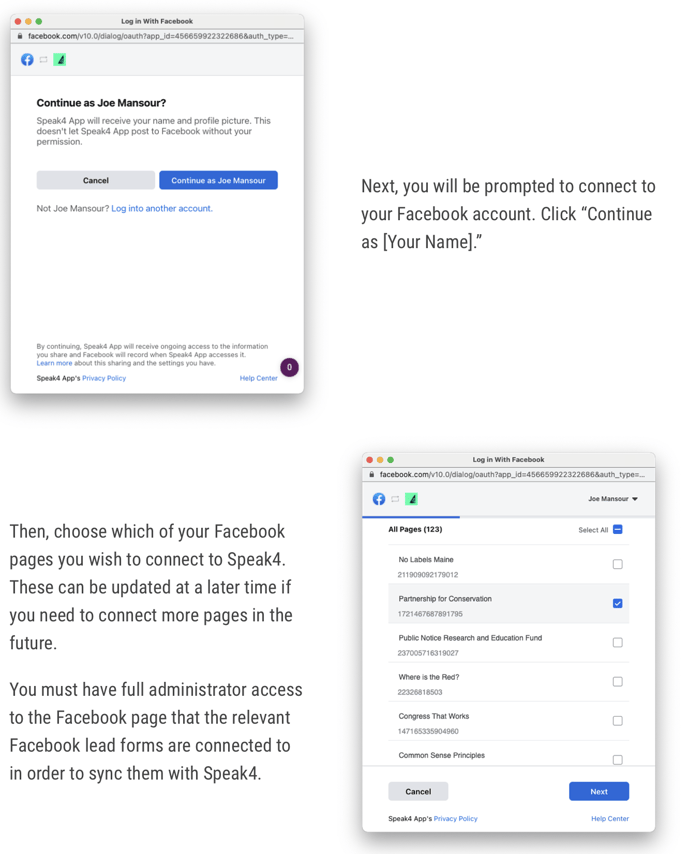
Next, you’ll be prompted to connect your Facebook account to Speak4 by clicking the “Continue with Facebook” button.
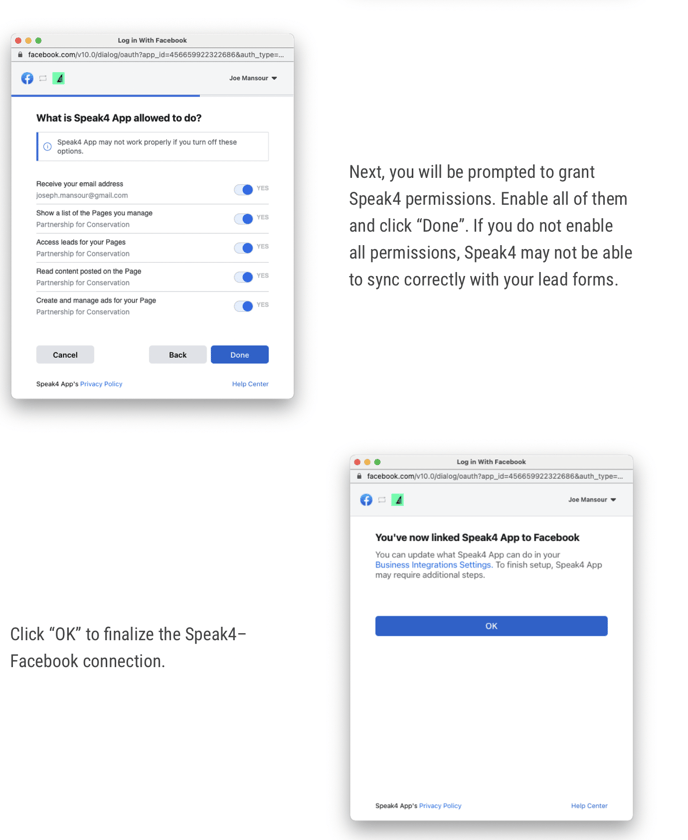
Please wait while your Facebook data is ingested by Speak4. Do not refresh the browser window or close the page while this data loads.
Syncing Your Facebook Lead Forms
Once the Facebook data is pulled into Speak4, you will see a list of all available Facebook pages with lead forms that can be connected to your Speak4 campaigns.
Note that lead forms that do not have a message set up in the “disclaimer content” block show an error message and cannot be assigned to a campaign. Unpublished drafts will also not be able to connect to a campaign.
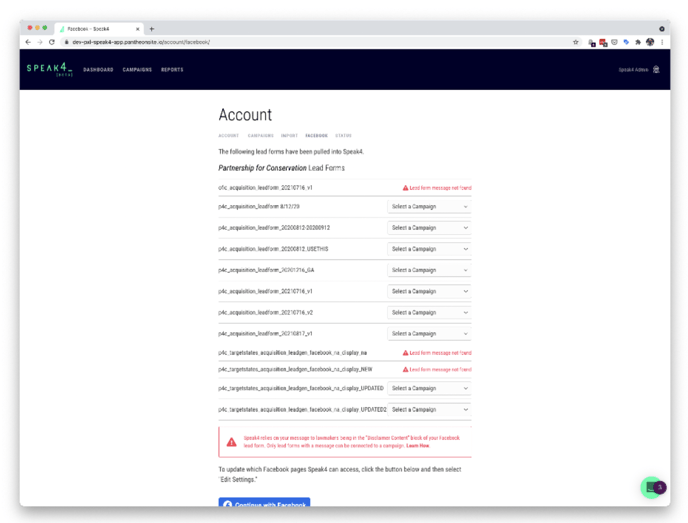
Locate the lead form you wish to connect and select a campaign to connect it to via the drop down menu on the right.
A review panel will appear for you to see the message that will be sent and the recipients to which the message will be sent. Make sure this looks right before proceeding! We will also let you know how many existing leads (if any) will be processed upon connection. Note that only your leads with a matching lawmaker/recipient will have messages sent.
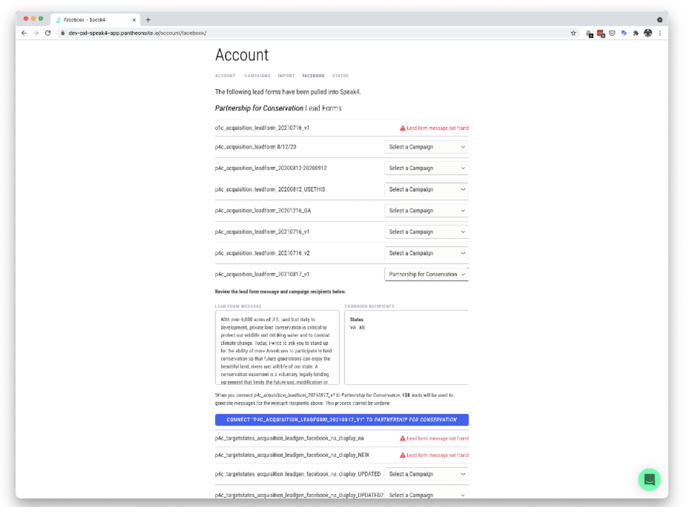
Once you’re sure everything is in order, press the “Connect” button and a final prompt will appear on the top of your screen confirming you want to proceed with the campaign integration. Press “OK” to proceed.
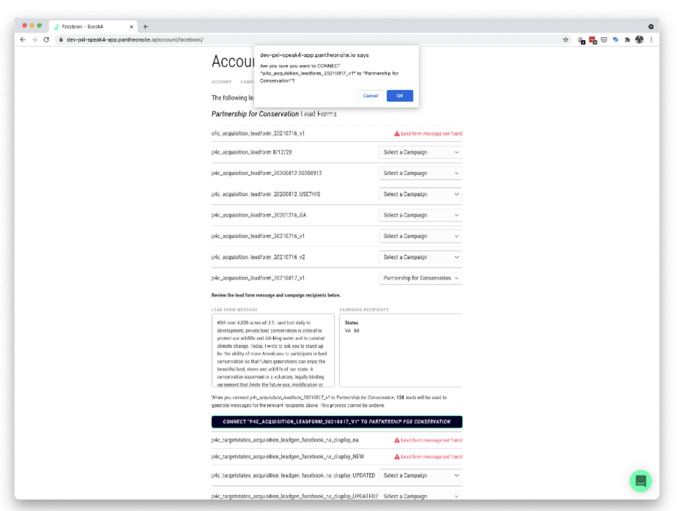
The button next to the lead form will then change colors indicating the connection is active. Congratulations – the lead form is successfully integrated with the relevant Speak4 campaign!
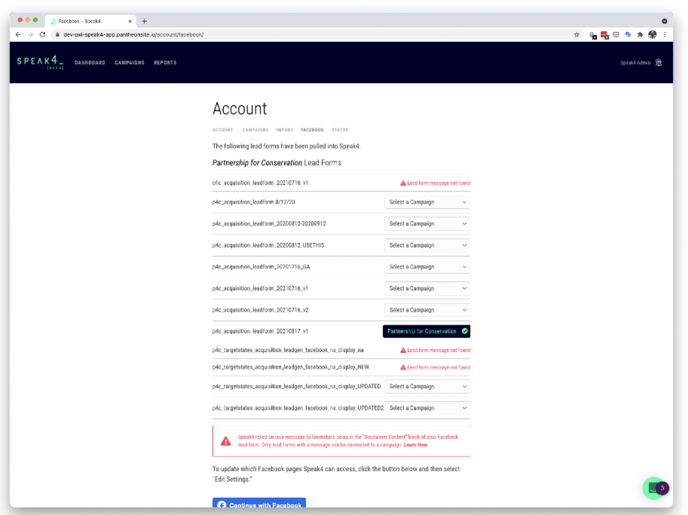
Once the integration is in place, new leads will continue to flow into Speak4 with no further action needed on your part.
You can track these new sign-ups in the reporting tab of the Speak4 app, just like you can do for new advocates coming in via landing pages.
Editing Lead Forms and Disconnecting Campaigns
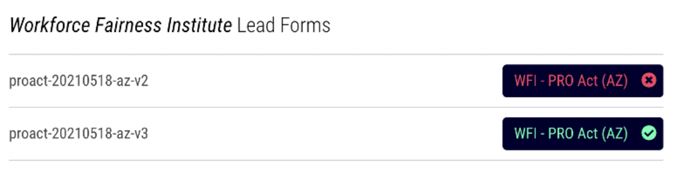
To edit a lead form that you’ve already synced to a Speak4 campaign, you will need to disconnect from the campaign, and reconnect once you’re finished making changes. To disconnect a lead form, simply click the button next to the connected lead form and a confirmation message will appear. Click “OK” and the lead form sync will halt. This will prevent new leads from syncing to Speak4, but will not affect messages sent previously.
Adding Additional Facebook Pages
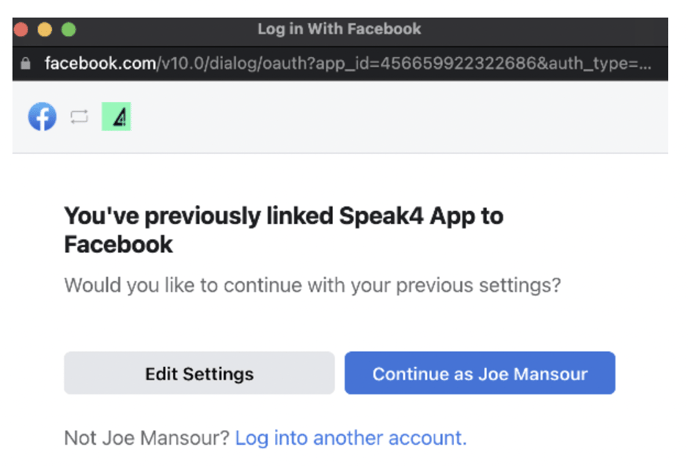
If you want to add another Facebook page to sync to Speak4, click the “Continue with Facebook” button and then click “Edit Settings.” Select the Facebook pages you wish to connect and click “Next”, “Done”, and finally “OK’ when prompted by Facebook. The new settings will then take effect.
Still have questions? Contact us at team@speak4.co.