
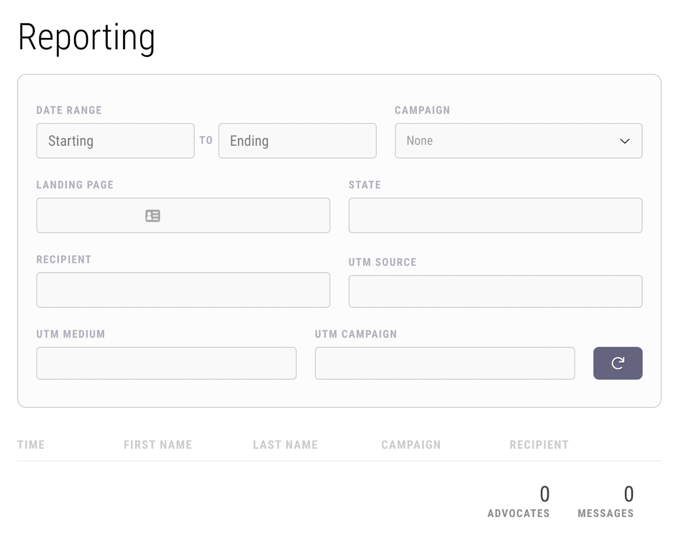
To run a report of your advocacy effort, click the “reports” tab within the Speak4 app.
You’ll then have a number of fields that will allow you to sort and filter your report by various data points, including date range, campaign, landing page, state, message recipient and UTM tags.
Once you have set your parameters, click the “run report” arrow to see a preview of your report data. You can then further refine your report data or download a CSV file with all available data present on the advocates in your account that falls within your report’s structure.
Dashboard Topline Results
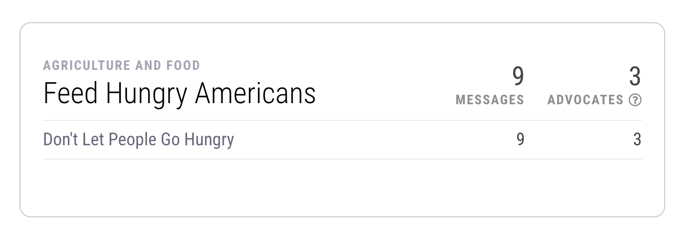
You can also view topline results on each of your campaigns on the Speak4 dashboard. You will see lifetime totals for number of messages sent and total advocates by Campaign and Landing Page.
Export Results
Once you’ve previewed your report results, you can export the report as a CSV file. Additional data on your advocates, beyond what was shown in the report preview, will be available in the CSV file.

Still have questions? Contact us at team@speak4.co.